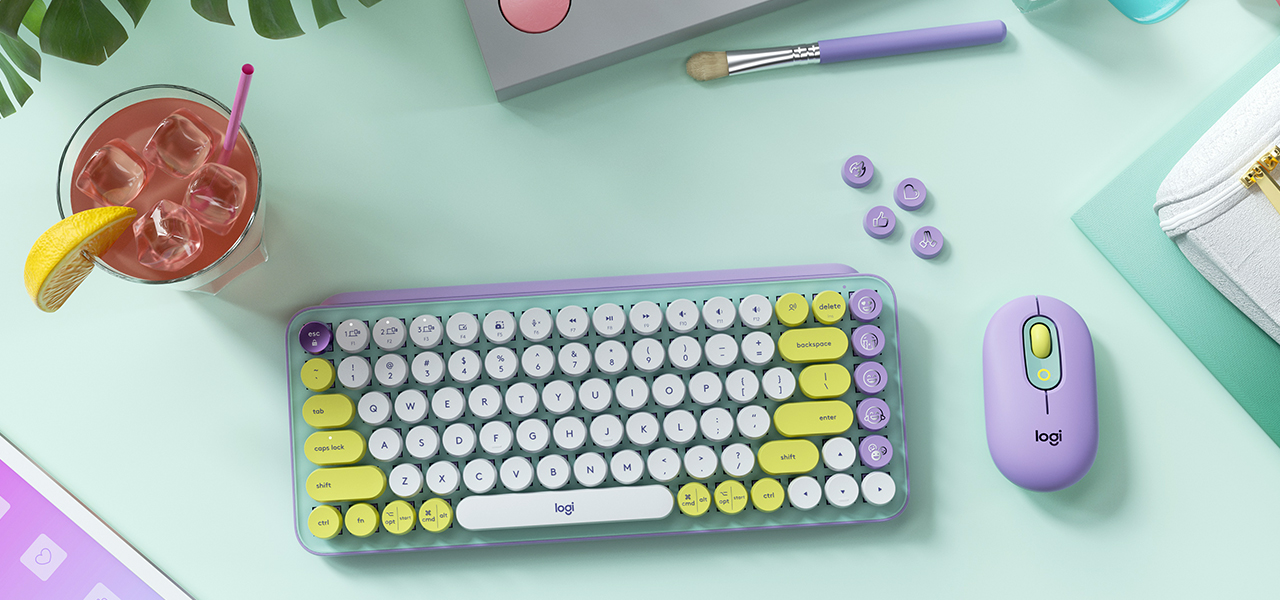
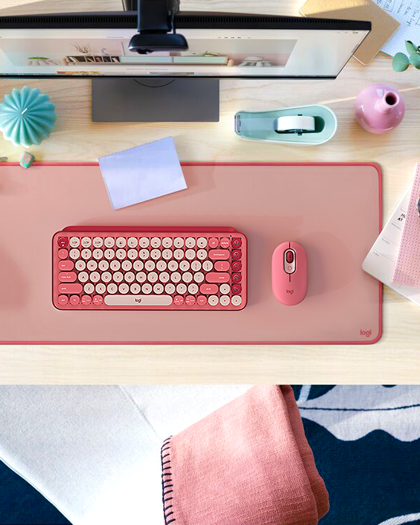
| GET TO KNOW YOUR POP KEYBOARD |
Now it's time to master your new gear.
Use these tips and tricks to personalize your setup and unleash your personality. |
|
| STEP 1: INSTALL LOGITECH OPTIONS |
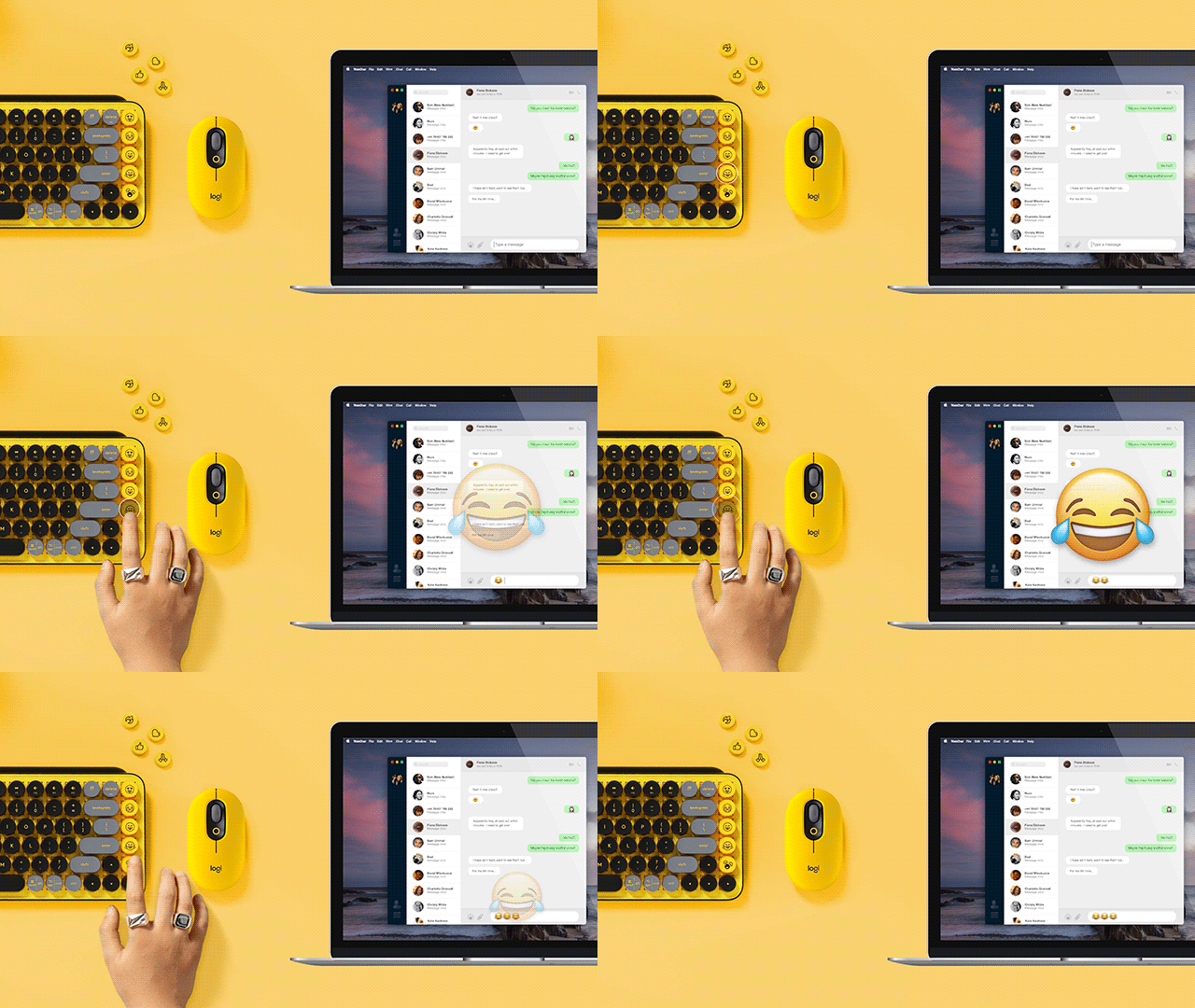
| Download Logitech Software and follow the easy installation instructions. Once the software is installed, your emoji keys are good to go. |
|
|
STEP 2: SWAP OUT EMOJI KEYS
|
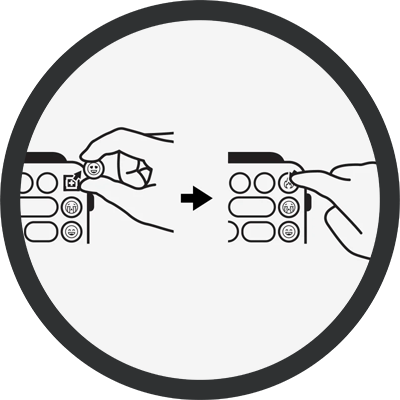
| To remove an emoji key, firmly grip it and pull it vertically. You'll see a '+' shaped stem beneath. Choose the emoji key you want, align it with the '+' shape and press down firmly. |
|
|
| STEP 3: ACTIVIATE THE NEW EMOJI |
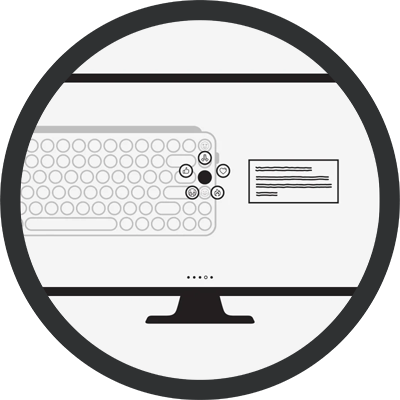
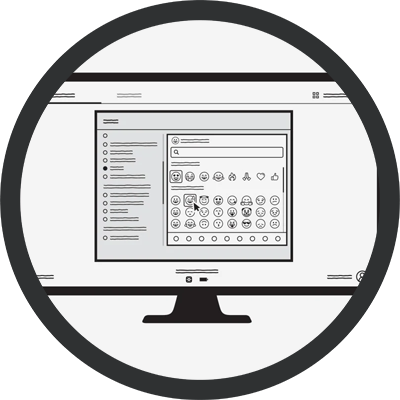
| Open Logitech Software (making sure your POP Keys is connected) and select the key you want to reassign. Select your favorite emoji and get your personality popping in chats with friends! |
|
|
|
|
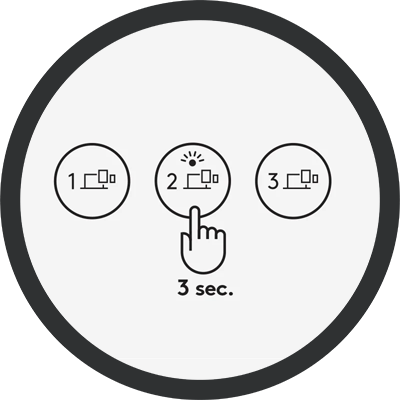
| Hold the Channel 2 Easy-Switch key for 3 seconds and pair it to another device. Once paired, tap the Easy-Switch key you assigned and move between devices as you type. |
|
|
|
|