| STEP 1: INSTALL LOGITECH OPTIONS |
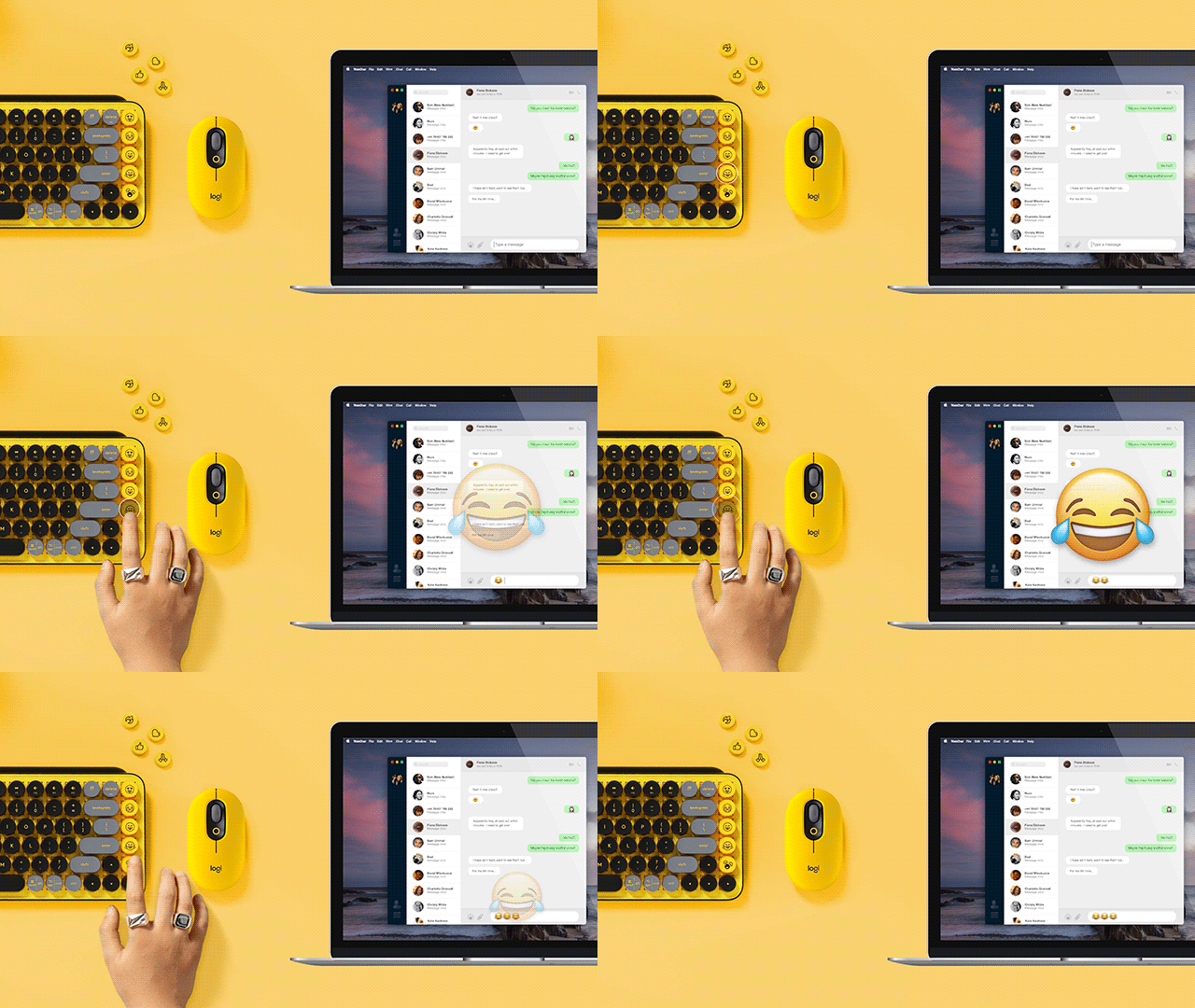
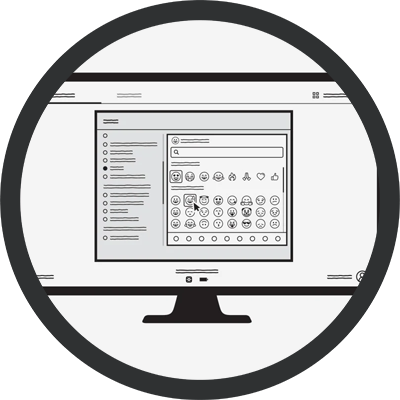
| Download Logitech Software and follow the easy installation instructions. Once the software is installed, your emoji keys are good to go. |
|
|
STEP 2: SWAP OUT EMOJI KEYS
|
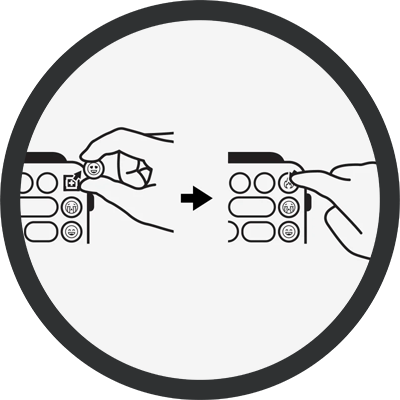
| To remove an emoji key, firmly grip it and pull it vertically. You'll see a '+' shaped stem beneath. Choose the emoji key you want, align it with the '+' shape and press down firmly. |
|
|
| STEP 3: ACTIVIATE THE NEW EMOJI |
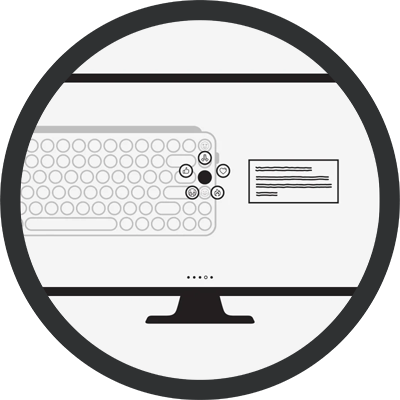
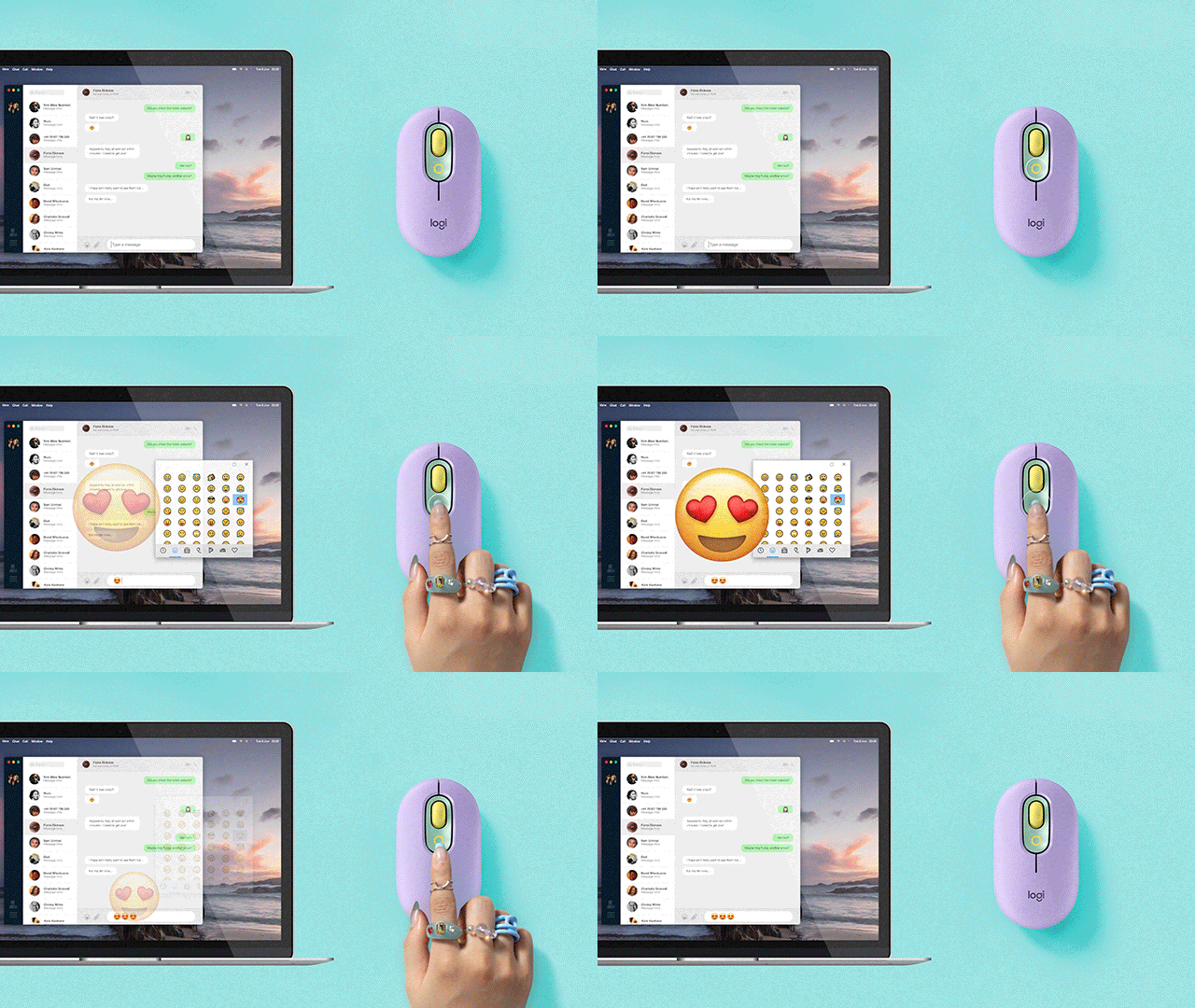
| Open Logitech Software (making sure your POP Keys is connected) and select the key you want to reassign. Select your favorite emoji and get your personality popping in chats with friends! |
|
|
|
|
| QUICK TRICK: CONNECT UP TO 3 DEVICES |
|
| TIP 1: DOWNLOAD LOGITECH SOFTWARE |
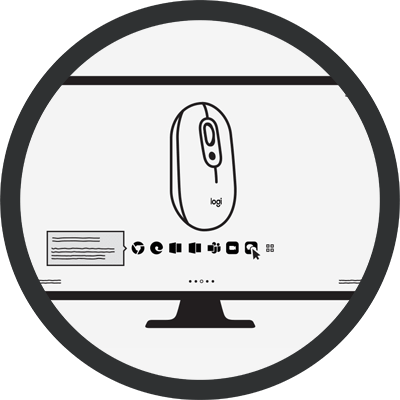
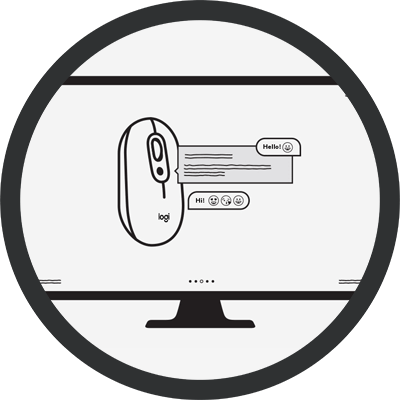
| After installing Logitech Software, explore our software and customize the top button of POP Mouse to any shortcut you like. |
|
|
TIP 2: SHORTCUT ACROSS YOUR APPS
|
| You can even customize your POP Mouse to be app-specific! Just play around and make it your own. |
|
|
| TIP 3: MULTI-DEVICE SETUP |
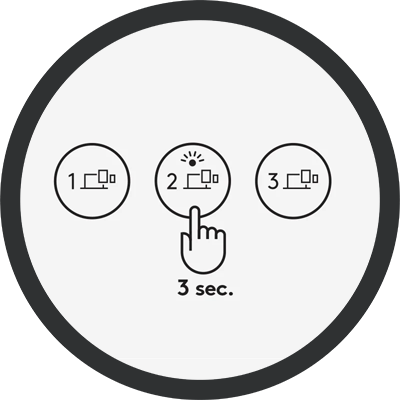
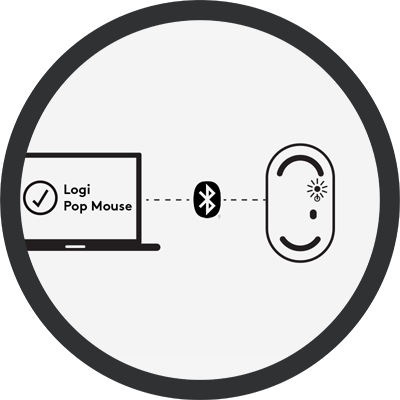
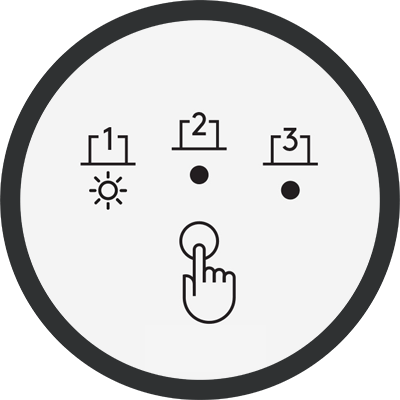
| Pair another device via Bluetooth by pressing the button underneath POP Mouse for 3 seconds. You’ll know you are in Pairing Mode when the LED starts blinking. |
|
|
|
|
| PRO TIP: FLOW BETWEEN DEVICES |
|
| Install FLOW on up to 3 devices via Logitech Software. Once downloaded on each device, you can move your cursor between them. This allows you to transfer files, music and more from one device to another. |
|
|
| STUDIO SERIES DESK MAT |
|
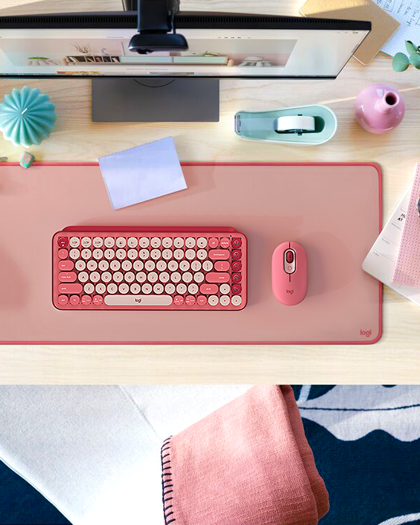
Meet the accessory that takes your workspace to the next level, perfectly complementing your Logitech tools. Get the fresh pop of color you crave, the comfort you need, and the desk protection you expect.
|
|
|
|
|
|
|