GET TO KNOW YOUR
POP KEYBOARD & MOUSE |
Now it's time to master your new purchase.
Use these tips and tricks to personalize your setup and unleash your personality. |
|
| STEP 1: INSTALL LOGITECH OPTIONS |
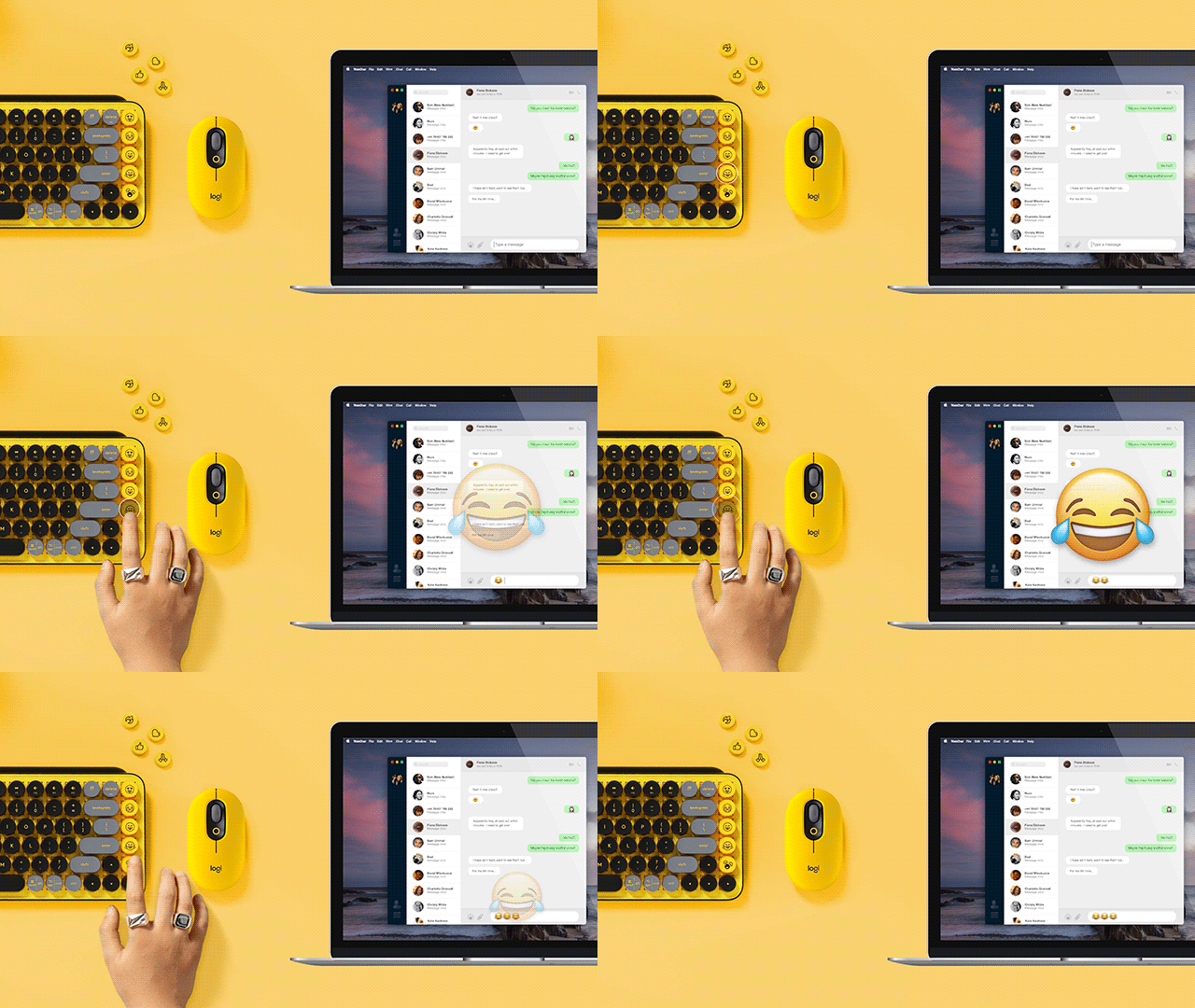
| Download Logitech Software and follow the easy installation instructions. Once the software is installed, your emoji keys are good to go. |
|
|
STEP 2: SWAP OUT EMOJI KEYS
|
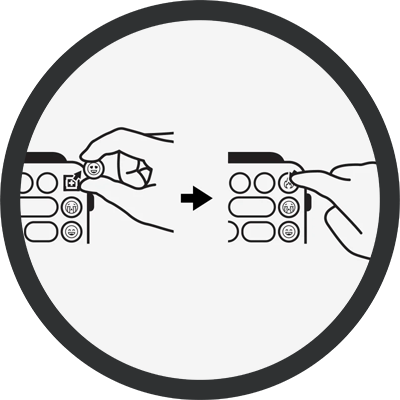
| To remove an emoji key, firmly grip it and pull it vertically. You'll see a '+' shaped stem beneath. Choose the emoji key you want, align it with the '+' shape and press down firmly. |
|
|
| STEP 3: ACTIVIATE THE NEW EMOJI |
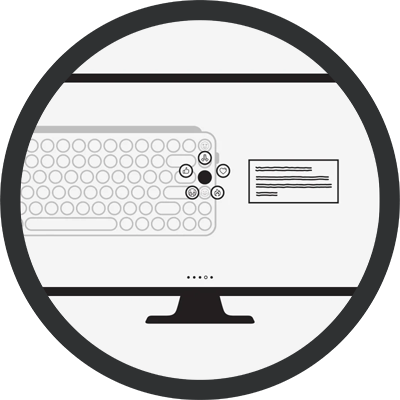
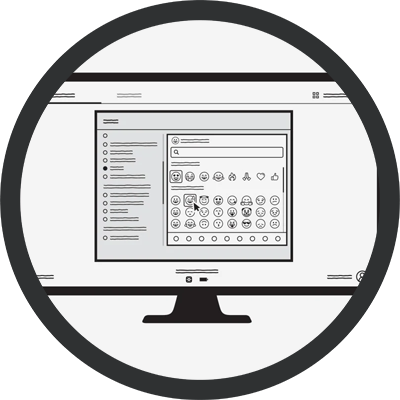
| Open Logitech Software (making sure your POP Keys is connected) and select the key you want to reassign. Select your favorite emoji and get your personality popping in chats with friends! |
|
|
| STEP 1: SELECT EASY-SWITCH CHANNEL |
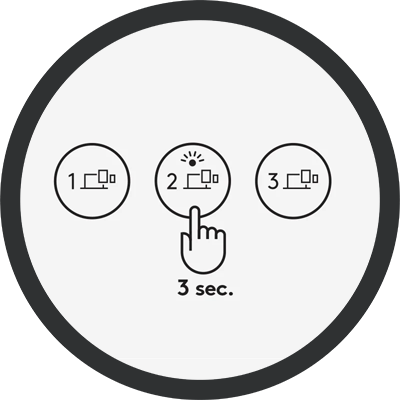
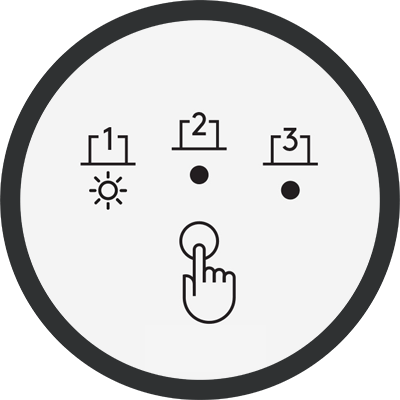
Easy. Long press (3-ish seconds) the Channel 2 Easy-Switch Key. When the keycap LED starts blinking, your POP Keys is ready to pair to a second device via Bluetooth.
Pair to a third device by repeating the same thing, this time using the Channel 3 Easy-Switch Key. |
|
|
STEP 2: TAP BETWEEN DEVICES
|
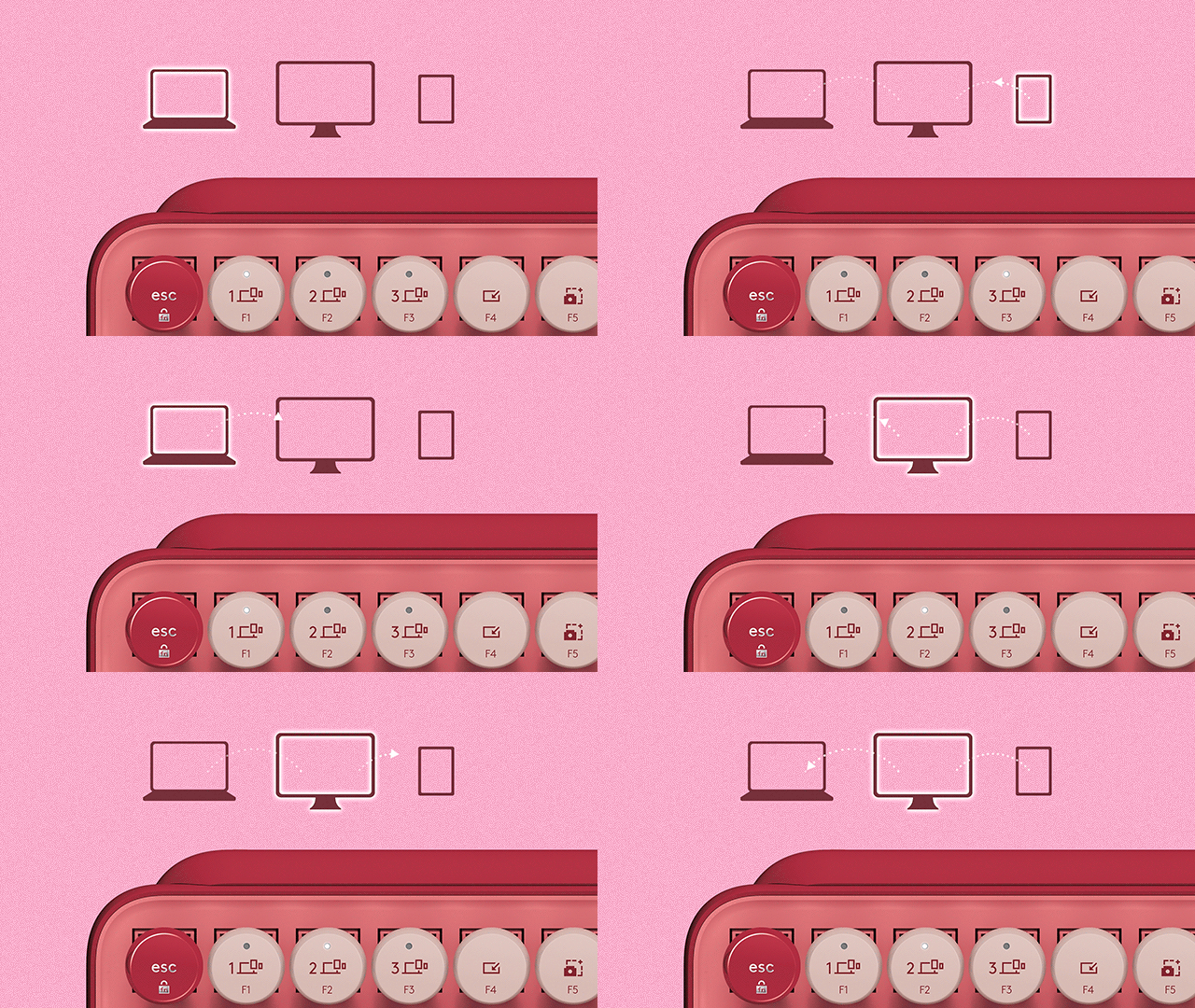
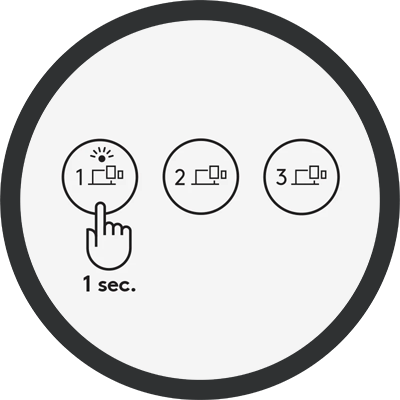
Simply tap the Easy-Switch keys (Channel 1, 2, or 3)
to move between devices as you type. |
|
|
| STEP 3: SELECT A SPECIFIC OS LAYOUT |
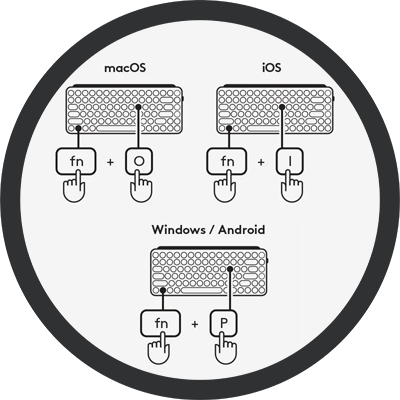
To switch to other OS keyboard layouts, long press the following combinations for 3 seconds:
- FN and “P” keys for Windows/Android
- FN and “O” keys for macOS
- FN and “I” keys for iOS
When the LED on the corresponding channel key lights up, your OS has been successfully changed. |
|
|
| DOWNLOAD LOGITECH SOFTWARE |
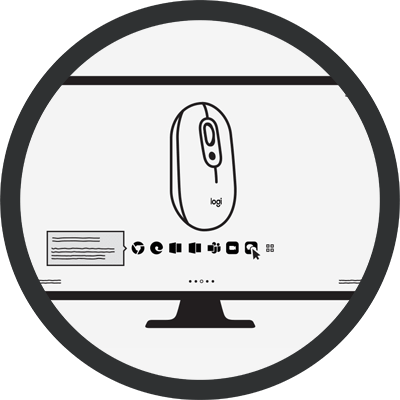
| Download Logitech Software and follow the easy installation instructions. Once the software is installed, explore our software and customize the top button of POP Mouse to any shortcut you like. |
|
|
CHANGE YOUR SHORTCUT ACROSS APPS
|
| You can even customize your POP Mouse to be app-specific! Just play around and make it your own. |
|
|
| WANT TO PAIR ANOTHER DEVICE? |
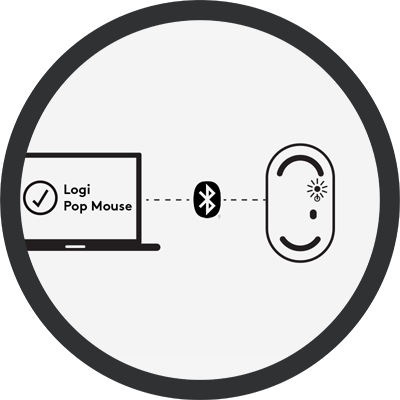
| Pair another device via Bluetooth by pressing the button underneath POP Mouse for 3 seconds. You’ll know you are in Pairing Mode when the LED starts blinking. |
|
|
| FLOW BETWEEN DEVICES |
| Install FLOW on up to 3 devices via Logitech Software. Once downloaded on each device, you can move your cursor between them. This allows you to transfer files, music and more from one device to another. |
|
|
|
|