Preheader goes here.
GET TO KNOW YOUR MX MASTER 3
This email is full of tips and tricks to master your MX Master 3
GETTING STARTED
 
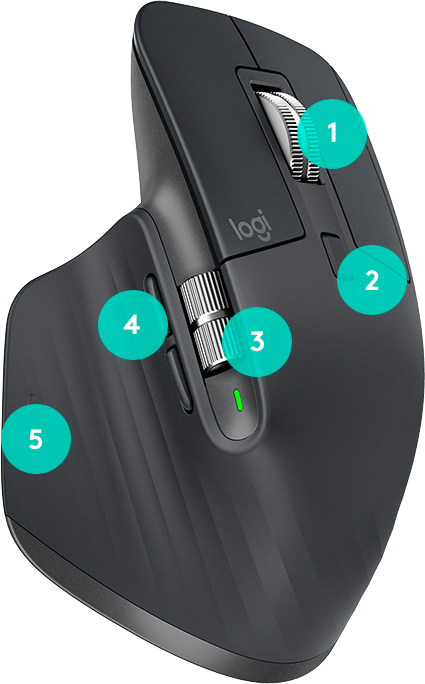
1. MAGSPEED wheel
Automatically shifts from line-by-line scrolling to free-spinning when you scroll faster.
2. Mode shift button
Manually toggle between Ratchet and Free-Spin modes.
3. Thumb wheel
Scroll horizontally with a gentle turn of the thumb wheel.
4. Back & forward
Move forward and back with perfectly placed buttons.
5. Gesture button
Click and hold the button as you move the mouse to use gesture commands.
PRO TIP:
As you scroll faster, the speed-adaptive scroll-wheel will automatically shift from line-by-line scrolling to free-spinning.
LOGITECH OPTIONS
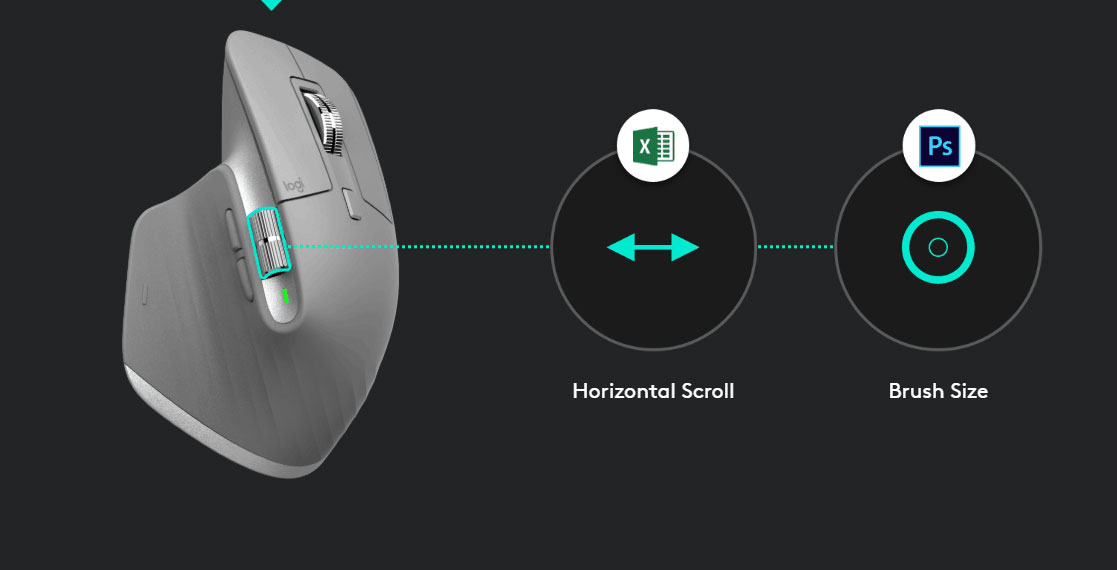
App specific settings
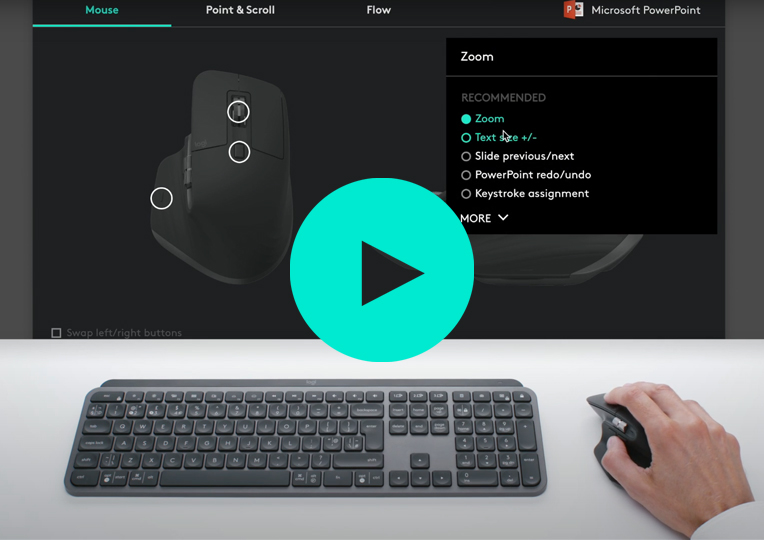
Your MX Master 3 can have different settings for any app you are using.
Customize your mouse
Customize and register your device and with Logitech Options and do more than you thought possible.
DOWNLOAD MAC
DOWNLOAD PC
PRO TIP:
MUTE MEETINGS & TURN ON VIDEO WITH CUSTOMIZED BUTTONS¹
1. Go to All Applications then Add application.
2. Choose your meeting app, Zoom or Teams.
3. Select Install Profiles, then click Install.
4. Assign Mute and Start Video to the buttons that suit your workflow.
GET STARTED WITH OPTIONS
LOGITECH FLOW
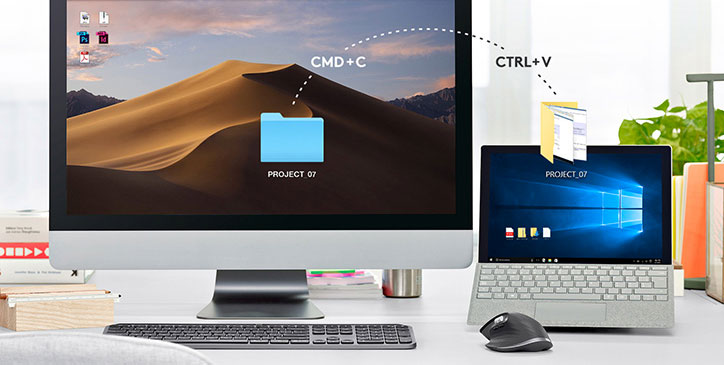
SIMPLIFY YOUR WORKFLOW
Flow makes transferring text, images and files effortless – even between Mac & PC. It's as easy as copying on one and pasting on the other.
GET FLOW
PRO TIP:
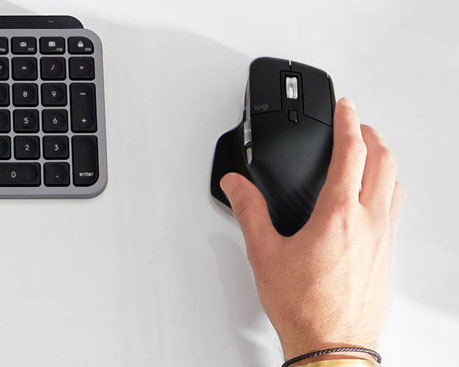
Keep your charging cable somewhere you'll remember – you won't need it for a while with 70-day battery life.
HELPFUL RESOURCES
GETTING STARTED: YOUR MX MASTER 3
With detailed interactive instructions, you'll breeze through setup and get the most out of your new mouse.
SETUP GUIDE
 
App-specific settings tutorial
See how to use MX Master 3 in your everyday applications.
WATCH VIDEO
HAVE QUESTIONS?
WE'VE GOT ANSWERS
SET-UP GUIDE 
FAQs
CONTACT US
 
Facebook Instagram Twitter Pinterest YouTube
PRIVACY + SECURITY
UNSUBSCRIBE
CONTACT
TERMS OF USE